
Shopify Install
This article will cover how to install the Legacy Justuno tag on your Shopify store
Shopify is removing ScriptTag access from apps, and on March 1, 2027 it stops loading app script tags on storefronts (Shopify announcement). To keep Justuno running, add the embed code directly to your theme's theme.liquid file with one small edit, then set up conversion tracking.
Last updated 11/19/2026
Note: The Justuno app listed in the Shopify app store is only for use with the new Justuno Platform. You can request us to upgrade your legacy Justuno account to the New Justuno for free by scheduling a quick 10 min call with our migration specialist. We'll handle the complete migration for you. https://calendly.com/brad-justuno/30min
Install the embed code
- Copy your standard embed code from your Justuno Embed Code page.
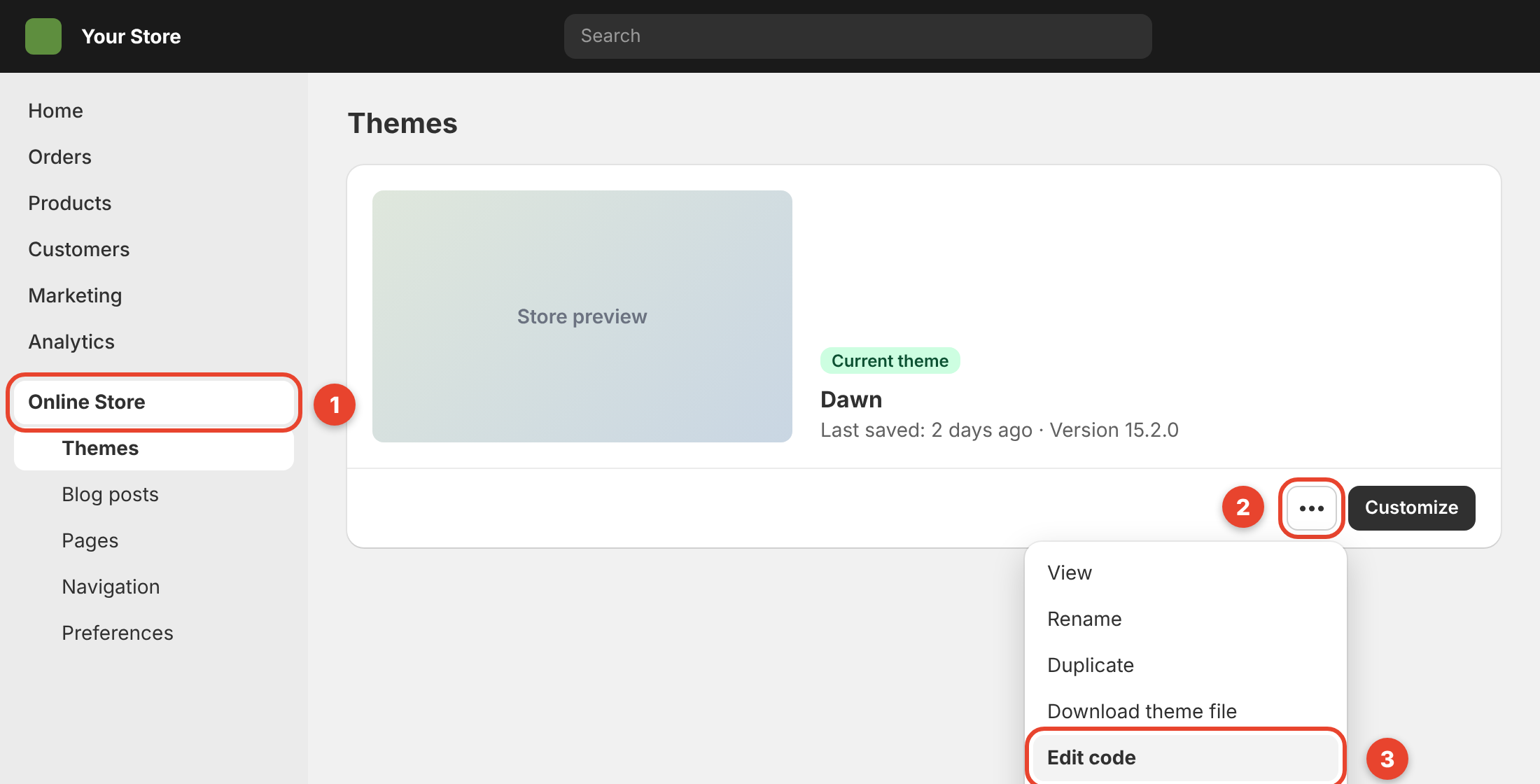
- In Shopify, go to Online Store → Themes, click … next to your current theme, and choose Edit code.
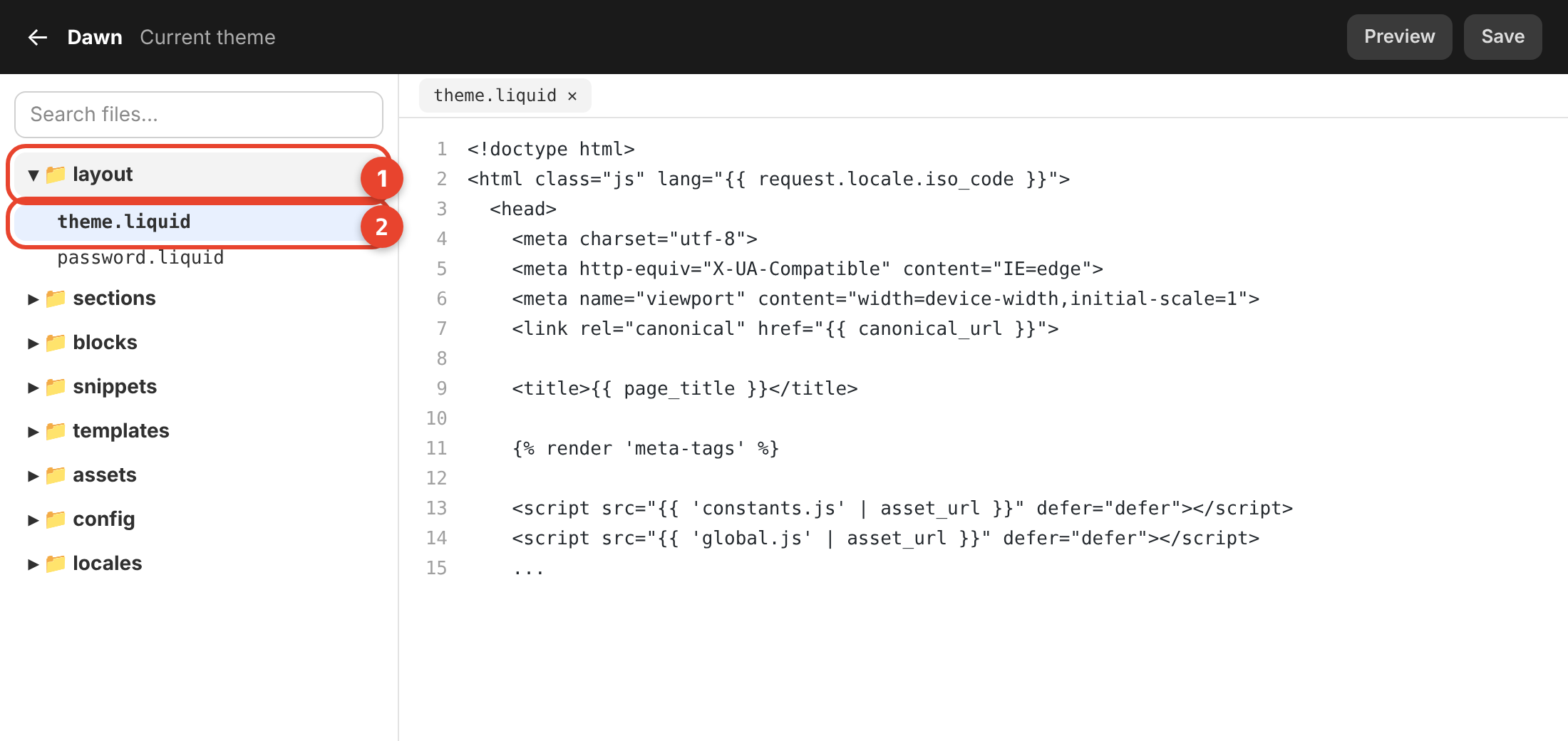
- Open the layout folder and click theme.liquid.
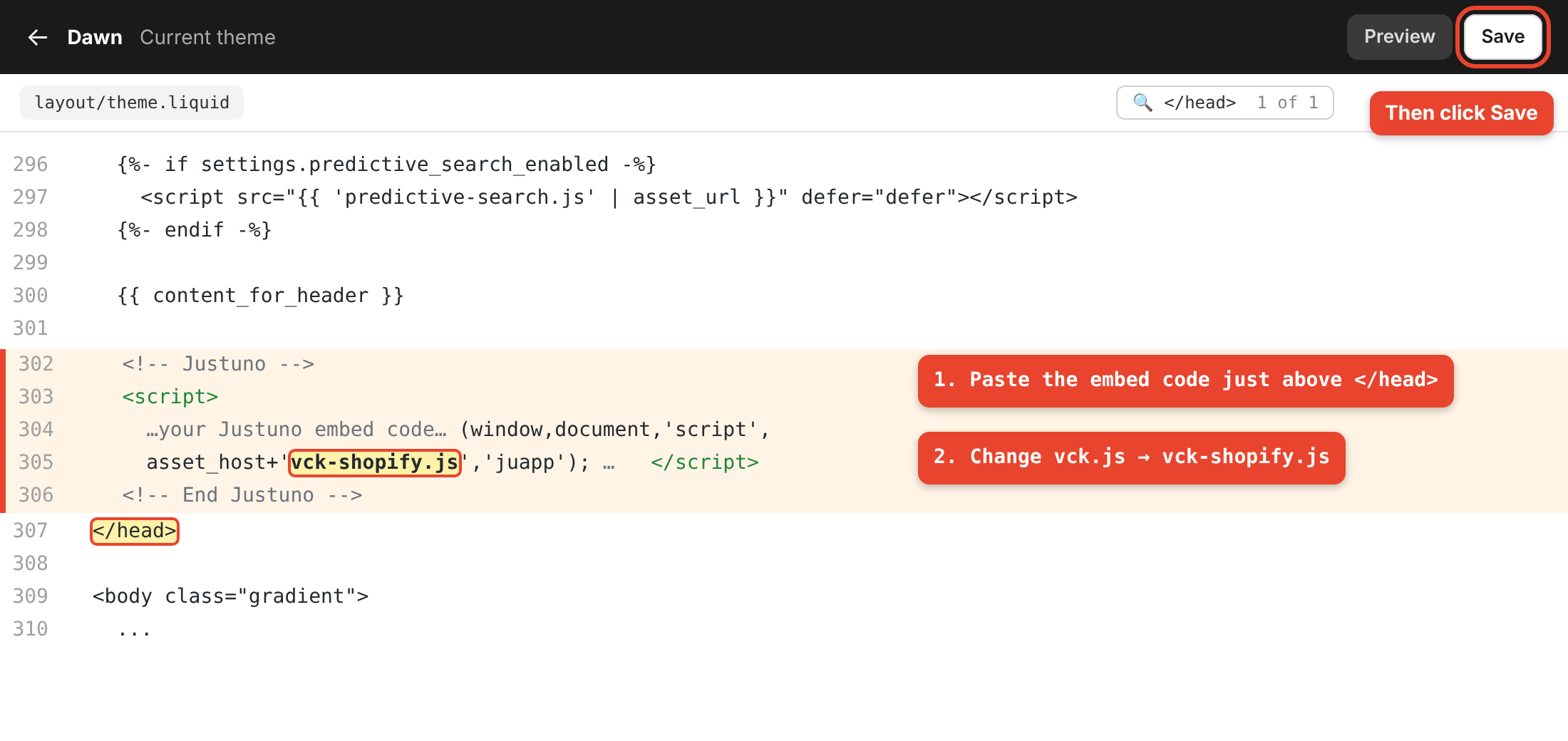
- Paste the embed code just before the closing
</head>tag (or just before the closing</body>tag). - Make the edit: in the code you just pasted, change
vck.jstovck-shopify2.js. - Click Save.
Set up conversion tracking
Next, follow Conversion Code: Shopify Checkout Extensibility to track conversions.
Questions?
Contact Justuno Support if anything is unclear or Justuno isn't showing on your store.Looking to also